Uploading and Managing Leads in Bulk
Used in these workflows
- What it is: The Leads > Upload page is a powerful section for adding and updating multiple leads at once.
- Key Features:
Excelbutton: Click this first to download the sample Excel sheet. You must use this format for your upload to work correctly.Uploadbutton: Click this to open the upload pop-up. Choose your formatted Excel file to begin the bulk upload.- Validation Tabs: After uploading, the system will sort the leads into tabs:
- New Leads: Successfully imported new leads.
- Existing Leads: Leads that were already in the system.
- Incomplete Leads: Leads with errors. The system will show you the reason for the error so you can fix your file and re-upload.
Createbutton: Use this to manually create a single lead directly. Unlike when an agent creates a lead, this does not create a Data Change Request and is added instantly.⋮Menu (Update Cost): In the three-dots menu on this page, you can find the option to Update Cost for multiple leads at once.
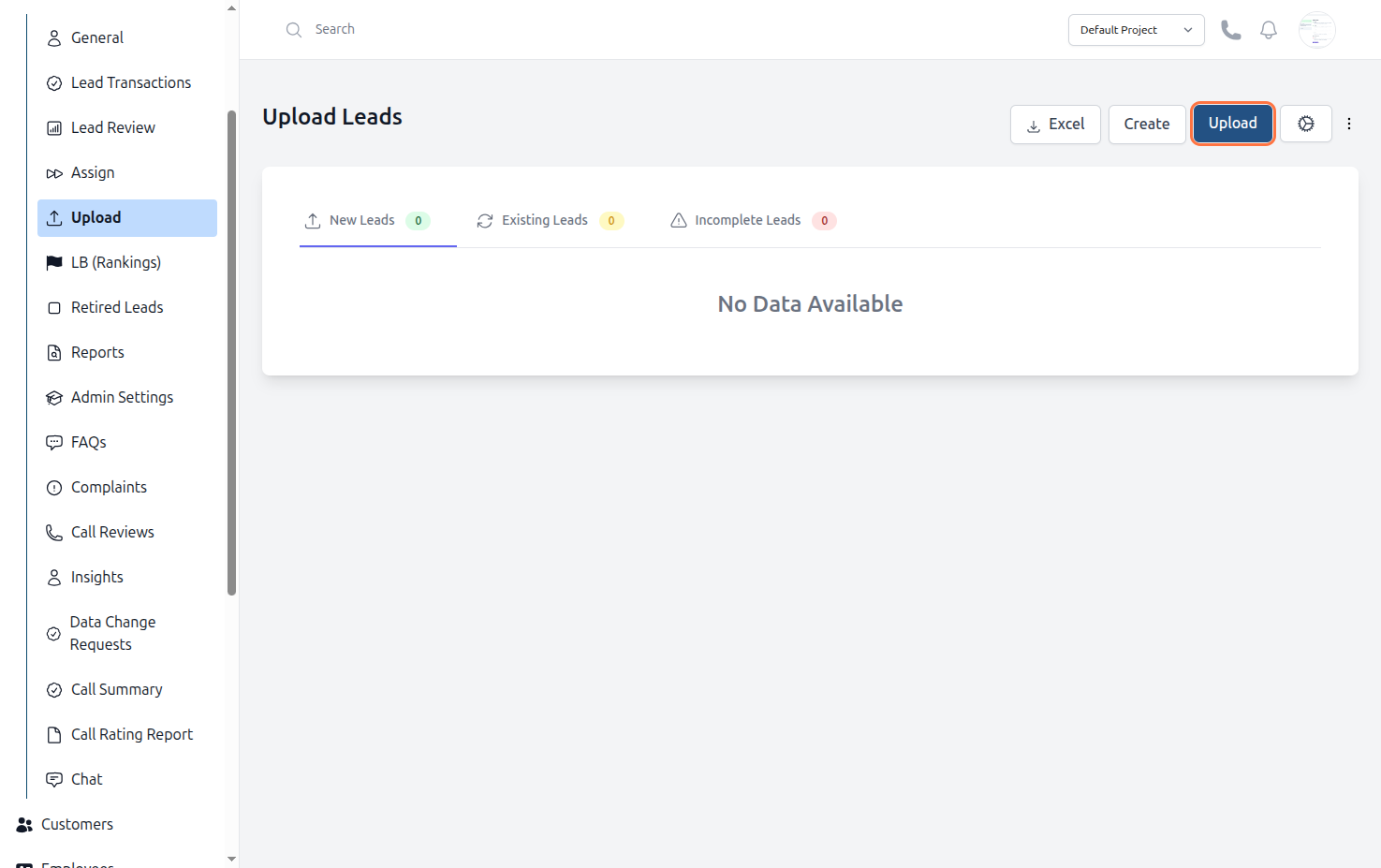
Figure: Bulk Lead Upload